 Pay4SaaS
Email & Password Authentication
The Pay4SaaS login page supports three methods: Email & Password, Google OAuth, and GitHub OAuth. This guide covers the Email & Password configuration.
1. Enable Supabase Email Provider
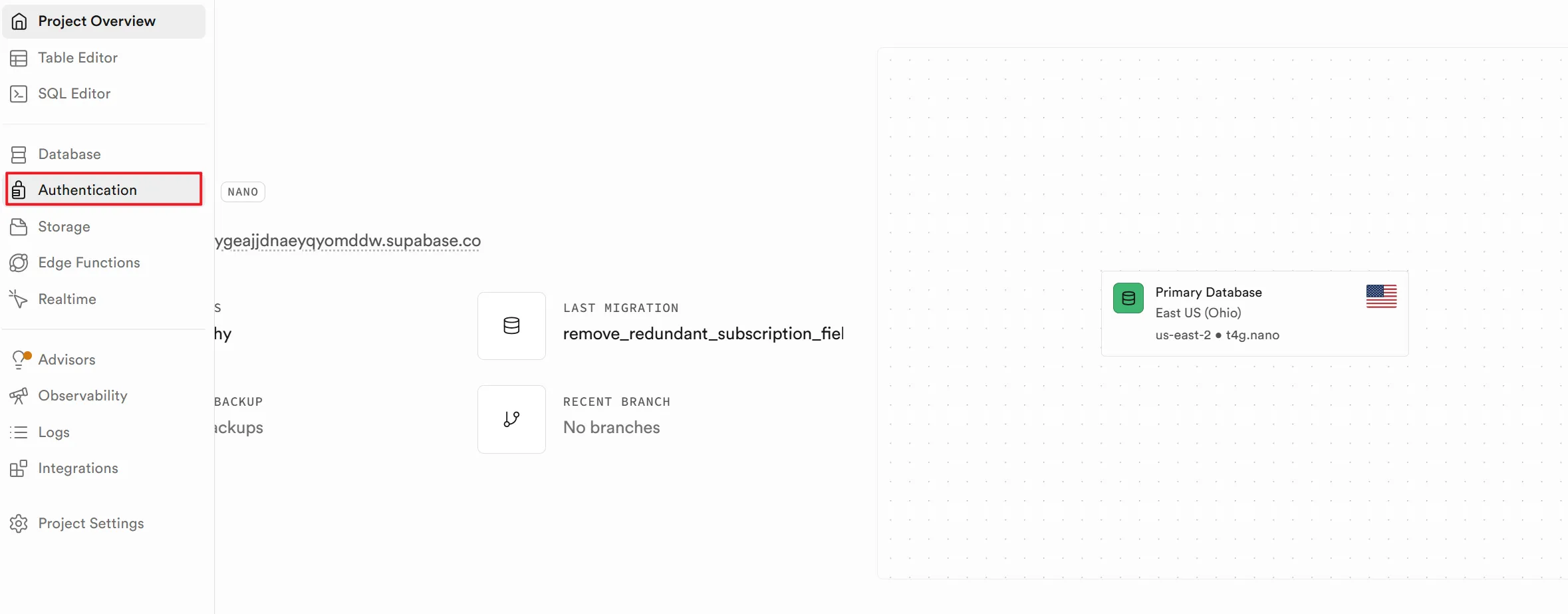
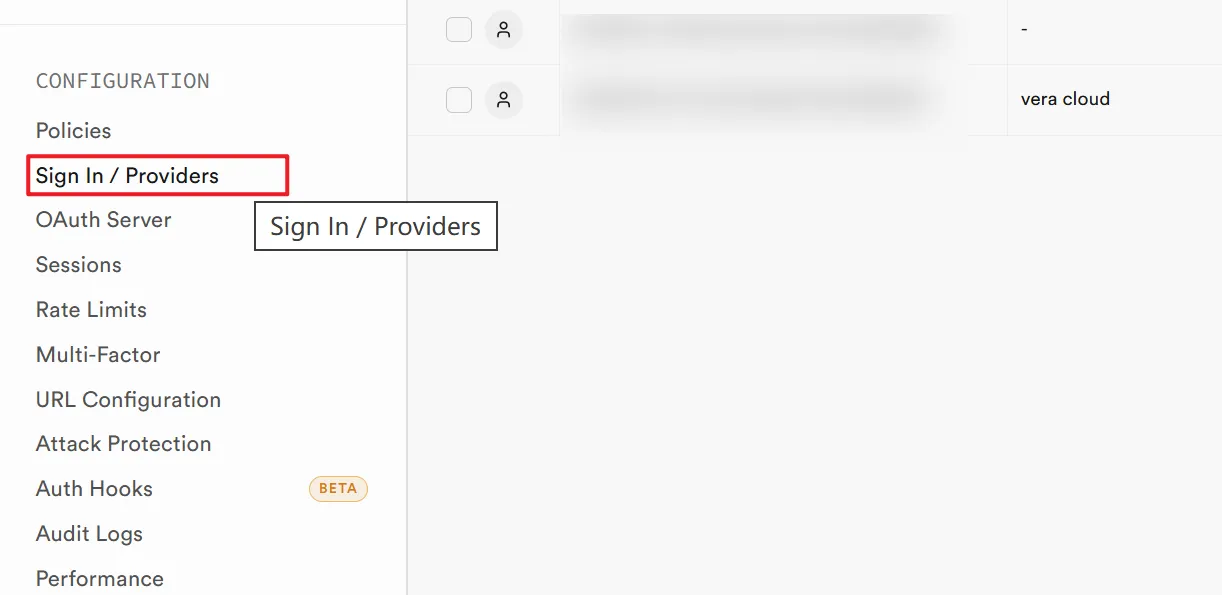
Go to Supabase Dashboard → your project → Authentication → Sign In / Providers → Email.
Confirm the following settings:
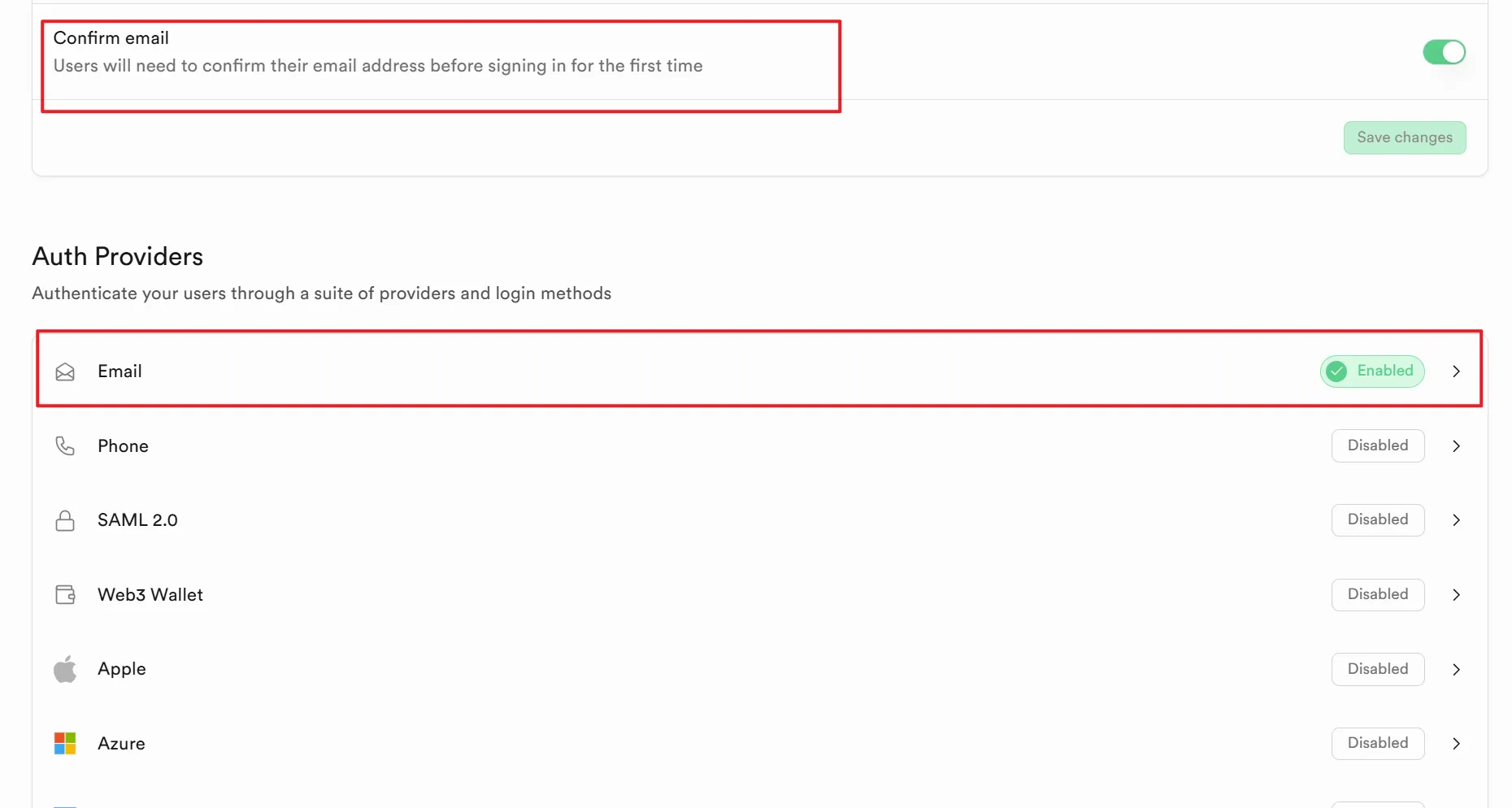
- Confirm email: Enabled (requires email confirmation after sign-up)
Click on the Email entry and confirm the following settings:
- Enable Email provider: Enabled
- Secure password change: Recommended to enable
- Secure email change: Recommended to enable
2. Login Page Features
The login page at /login includes the following built-in features:
- Sign In: Enter email + password, calls
signInWithPassword() - Sign Up: Switch to Sign Up mode, enter email + password, calls
signUp()and sends a confirmation email - Forgot Password: Click Forgot Password, enter email, calls
resetPasswordForEmail()and sends a reset link - Password Show/Hide: Eye icon on the right side of the password input field
After signing up, the user will receive a confirmation email. Clicking the link will automatically redirect back to the app to complete verification.
3. No Additional Configuration Required
Email & Password authentication uses Supabase's built-in Auth service. No additional environment variables or third-party service configuration is needed — just make sure the Supabase Email Provider is enabled.
Next Steps
Docs home
Return to the full implementation guide.
Pricing
Review subscriptions, credits, and lifetime options.
Blog
Read more notes on SaaS payments and growth.